
Too many notifications?
Yoohoo gathers alerts from your apps & services.

Scan with your phone to get Yoohoo


From the maker of WithUPI
You paid for dinner, a friend booked the cab, and someone else bought the tickets. Sending everyone one-third of the dinner bill will settle only part of what you owe each other.
To split bills with UPI, first agree on each person's share and work out who should receive money. Then make the UPI transfers and record the completed payments. Google Pay and Paytm have bill-splitting tools; Splitwise, a spreadsheet or a clear chat message can keep the calculation separate from the payment.
Choose the method your group will actually use. For a single dinner, one message may be enough. For a trip or monthly flatmate expenses, keep a shared record that everyone can check.
If you only need to settle a trip, WithUPI's free settle-up tool works out the fewest payments and gives you one link for the group chat. Each person taps their payment and pays in their own UPI app, with no sign-up.

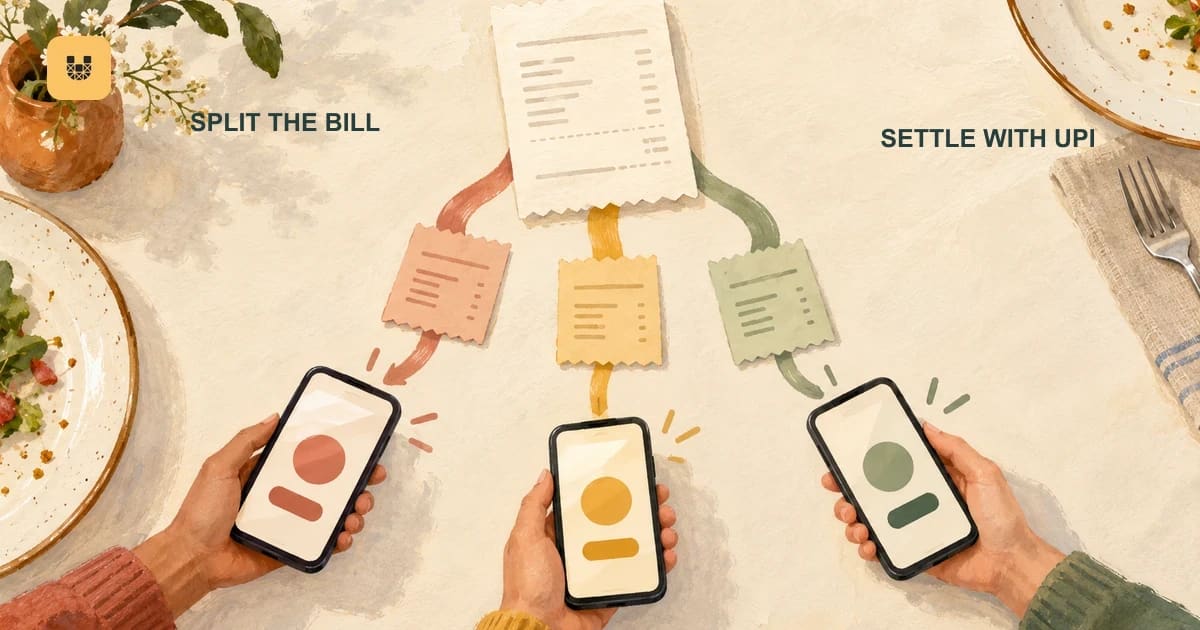
An illustrative group dining scene, not a demonstration of a UPI app. Photo by
Denys Gromov on Pexels
Choose a method for your group
| Method | Useful for | What to watch |
|---|---|---|
| Google Pay groups | People already using Google Pay together | Check which account receives the repayment |
| Paytm Split Bills | A group using Paytm | Confirm the feature is available in your app |
| Splitwise plus UPI | Trips and ongoing expenses with different payers | Record an external payment only after it completes |
| Shared spreadsheet plus UPI | Monthly rent, groceries and utilities | Agree on shares and protect private payment details |
| Chat breakdown plus UPI | A one-off dinner, cab or gift | Keep the amount and recipient beside the payment details |
1. Split an expense in a Google Pay group
If your friends already use Google Pay, you can keep a bill and its repayments in the same group.
To split a payment you made in Google Pay, open See transaction history, choose the payment, enter the bill total and name, select the people involved, then tap Send request. For an existing group, open its chat and choose Split an expense.
Check the participants and each amount shown before sending. Do not include someone who did not share the expense just because they are in the group.
Only the bill creator receives repayments for that split, and they go to the creator's primary bank account on Google Pay. The creator can see individual payment status in the bill details. Other participants can see how many payments remain pending.
For several expenses in the same group, the group expense view shows what you owe, what others owe you and what has been settled. It also lets you settle multiple expenses with the same recipient within that group.
An app's expense request is an instruction to settle a bill. Review the recipient and amount on the actual payment screen before approving. If the feature or payment flow is unavailable for your group, share the agreed balances and make ordinary UPI transfers instead.
2. Use Paytm Split Bills
Paytm users can divide a shared expense with Split Bills.
Open Paytm, find Split Bills, enter the total, add the people involved, divide the amount and send the split request. Each person can then complete their share through Paytm UPI.
This suits a dinner, movie booking or shared gift when the people involved already use Paytm. Check the amounts shown before you send the request, especially if the bill should not be divided equally.
The exact location of the feature can change with app updates. If you cannot find it, you can still calculate the shares and pay through your usual UPI flow. Nobody needs to change payment apps just to repay a dinner bill.
3. Track expenses in Splitwise, then pay through UPI
For a trip with several payers, a ledger helps keep track of who paid and who benefited from each expense.
In Splitwise, create a group, add the people involved and enter each expense with its payer. Expenses can be divided equally, by exact amounts, percentages or shares. Agree on the allocation before treating the balance as final.
You can record a payment made outside Splitwise. That gives an Indian group a practical way to settle through UPI:
- Review the balance and confirm the recipient's active UPI details.
- Pay the agreed amount in your UPI app.
- Check that the payment completed and ask the recipient to confirm the credit.
- Record that external payment in Splitwise once.
The recorded payment updates the ledger. It does not independently prove that a bank transfer happened. Avoid marking a pending UPI attempt as settled or recording the same repayment twice.
This method also works when people prefer different payment apps. The shared ledger handles the expenses; each payer uses their own app for the transfer.
4. Use a shared spreadsheet for recurring expenses
For flatmates, a simple sheet can be enough. Keep one row per expense with the date, description, person who paid, total and each person's agreed share. Keep repayments in separate rows so they do not get mistaken for new expenses.
At the end of the month, calculate each person's total paid minus their total share. Someone who paid more than their share should receive money. Someone who paid less should pay the difference.
Here is a small trip example with three people sharing all costs equally:
| Person | Paid during the trip | Share of the ₹3,600 total | Balance before repayment |
|---|---|---|---|
| Asha | ₹2,400 | ₹1,200 | Should receive ₹1,200 |
| Ravi | ₹900 | ₹1,200 | Owes ₹300 |
| Meera | ₹300 | ₹1,200 | Owes ₹900 |
Ravi pays Asha ₹300 and Meera pays Asha ₹900. Those two transfers settle this example. Asking both of them to repay one-third of Asha's ₹2,400 bill would ignore what they already paid.
For household expenses, decide what belongs in the shared pot. Rent may follow a different split from groceries, and a personal purchase should not appear as a group cost without agreement.
Share the sheet only with the people who need it. Record enough detail to match a repayment, such as the date, amount and reference. Keep bank statements and unrelated transaction history out of the shared document.
5. Send a clear breakdown in chat for a one-off bill
For one dinner, a shared app or sheet may be more work than the bill needs. Send the total, each person's share, who paid and the repayment destination in one message.
Suppose Asha paid a ₹2,400 dinner bill. The group agrees that Asha's share is ₹800, Ravi's is ₹700 and Meera's is ₹900. Ravi owes Asha ₹700 and Meera owes Asha ₹900.
A message could read:
Dinner on 12 October, ₹2,400 total. I paid the bill. Our agreed shares are Asha ₹800, Ravi ₹700 and Meera ₹900. Ravi, please send me ₹700; Meera, please send me ₹900. Check my name on the payment screen and use "Dinner 12 Oct" as the note where your app allows it.
Put the recipient's UPI ID, QR or payment link alongside that message. If each person bought different items, agree on how to allocate any taxes, discounts or other charges before sending the final shares. Check that everyone's shares add up to the actual bill.
A WithUPI page gives the person receiving repayments one link with their name, UPI ID and QR. It can be useful in a chat where friends use different apps. Keep the amount beside the link, and track repayments yourself. WithUPI does not calculate group balances or automatically confirm who has paid.
Before you mark the bill settled
Check the payer's completed transaction and the recipient's receiving-account credit. A reminder, screenshot or manually updated ledger can be useful for matching records, but should not replace checking the payment itself.
If an attempt is pending, check its status before trying again. A second transfer could leave the recipient with two repayments. If money was debited after a failed UPI payment, follow the failed-payment reversal guide.
If someone pays only part of their share, record the amount received and the remainder separately. For a ₹900 share with ₹600 received, ₹300 is still owed. Do not close the whole expense just because one transfer arrived.
Agree on a settlement date when you create the group or share the bill. Once the money arrives, update the record and tell the payer their balance is cleared. That small confirmation saves everyone from chasing a bill that has already been paid.
App instructions and source pages checked on 12 October 2026. Availability and screen labels may vary by app version.